How to Authenticate Email: SPF, DKIM and DMARC Setup Step by Step
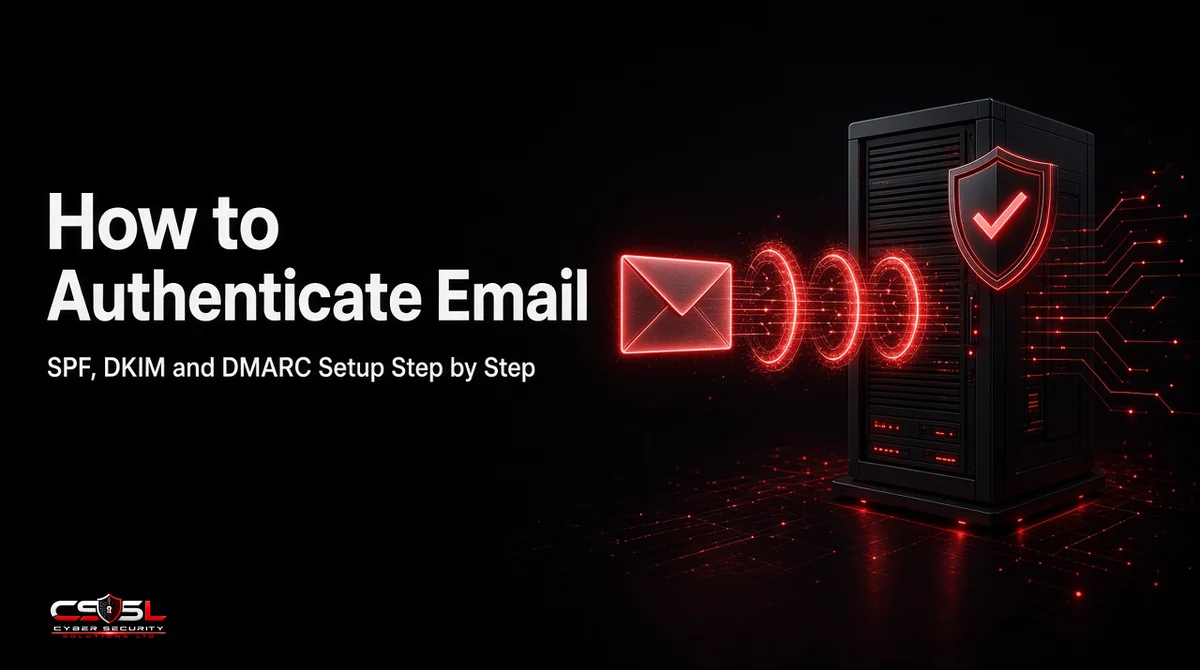
Your finance manager gets a call: a supplier received an invoice “from you” with new bank details. Nobody on your team sent it. Learning how to authenticate email is how you stop that. Three DNS records, SPF, DKIM and DMARC, let receiving servers check that mail using your domain really came from you.
What Is Email Authentication?
Email authentication is a set of DNS-based checks that let a receiving mail server confirm a message claiming to come from your domain was sent by an approved server and was not altered in transit. If the checks fail, your published policy tells the receiver whether to deliver, quarantine or reject it.
Why Email Authentication Matters (Spoofing, BEC, Deliverability)
Without authentication, anyone can send mail that shows your domain in the From line. That enables spoofing and business email compromise against your customers and staff. Authentication also affects deliverability: mailbox providers increasingly route unauthenticated mail to spam.
Google, Yahoo and Microsoft Sender Requirements
Since February 2024, Google and Yahoo have required bulk senders to use SPF, DKIM and a DMARC policy, with aligned domains and easy unsubscribe. Gmail defines bulk senders as those sending 5,000 or more messages a day to Gmail accounts; Yahoo sets no fixed number. Microsoft applied similar rules to high-volume senders to Outlook.com addresses from May 2025. All senders are expected to use at least SPF or DKIM.
The Three Methods in Brief
- SPF (Sender Policy Framework): a DNS record listing the servers allowed to send mail for your domain
- DKIM (DomainKeys Identified Mail): a digital signature added to each message, checked against a public key in your DNS
- DMARC (Domain-based Message Authentication, Reporting and Conformance): a policy that requires SPF or DKIM to pass and align with your visible From domain, tells receivers what to do on failure and sends you reports
BIMI, ARC and MTA-STS
BIMI displays your verified logo in some inboxes once DMARC is enforced. ARC helps forwarded mail and mailing lists keep authentication results. MTA-STS forces encrypted delivery to your mail servers. All three are optional extras after the core three work.
How SPF, DKIM and DMARC Work Together
A receiver checks SPF against the hidden envelope sender, checks the DKIM signature, then applies DMARC. DMARC passes if at least one of SPF or DKIM passes and its domain aligns with the From address the recipient sees.
What Is Alignment and Why It Fails
Alignment means the authenticated domain matches your From domain. It often fails when a third-party service, such as a marketing or invoicing platform, sends using its own domain for SPF and DKIM. The fix is to set up custom DKIM signing with your domain on that platform.
How to Authenticate Email: Step by Step
To authenticate email, publish an SPF record listing approved senders, enable DKIM signing for each service that sends as your domain, and publish a DMARC record starting at p=none. Read the reports, fix failures, then move the policy to quarantine and finally reject.
Step 1: Inventory Every Service That Sends From Your Domain
List everything that sends mail as your domain: your mailbox provider, marketing platform, CRM, helpdesk, invoicing and payroll tools, website forms and devices such as scanners. Missing one is the most common cause of failures later.
Step 2: Publish One SPF Record
Create a single TXT record at your root domain. An example for a business using Microsoft 365 and one marketing platform:
`v=spf1 include:spf.protection.outlook.com include:_spf.example-esp.com -all`
Rules to follow: only one SPF record per domain, stay within the limit of 10 DNS lookups set by the SPF standard, and end with `-all` (fail) or `~all` (soft fail) once you are confident the list is complete.
Step 3: Enable DKIM Signing for Each Sender
Turn on DKIM in each sending service. Each gives you a selector and either a public key TXT record or a CNAME to publish, for example at `selector1._domainkey.yourdomain.com`. Use 2048-bit keys where supported and send a test message to confirm signatures pass.
Step 4: Publish a DMARC Record at p=none
Add a TXT record at `_dmarc.yourdomain.com`:
`v=DMARC1; p=none; rua=mailto:dmarc-reports@yourdomain.com`
At p=none, nothing is blocked. You simply start receiving aggregate reports showing which servers send as your domain and whether they pass.
Step 5: Read DMARC Reports and Fix Failures
Aggregate reports arrive as XML files, so most teams use a report analyzer. Look for legitimate services failing SPF or DKIM, fix each one, and identify unknown sources that may be spoofing you.
Step 6: Move to Quarantine, Then Reject
| Stage | DMARC policy | What happens | Move on when |
|---|---|---|---|
| Monitor | p=none | Reports only | All legitimate senders pass for several weeks |
| Partial protection | p=quarantine | Failing mail goes to spam | No legitimate mail is being quarantined |
| Full protection | p=reject | Failing mail is refused | Ongoing: monitor reports for new senders |
Note that the updated DMARC standard, published by the IETF as RFC 9989 in May 2026, deprecates the old pct= tag, so move between policies rather than relying on percentages.
Authenticating Email in Microsoft 365 and Google Workspace
Microsoft 365 publishes SPF guidance for its servers and lets admins enable DKIM for custom domains in the Microsoft Defender portal by publishing two CNAME records. Google Workspace generates a DKIM key in the Admin console under Gmail authentication, which you publish as a TXT record and then start signing. In both, DMARC is a DNS record you add yourself at your domain host.
Protecting Parked and Non-Sending Domains
Domains that never send email can still be spoofed. Publish `v=spf1 -all` and a DMARC record with p=reject on each one. The UK NCSC recommends this for parked domains, and the new DMARC np= tag lets you set a policy for non-existent subdomains.
How to Check Your Email Authentication
Reading Authentication-Results Headers
Open a received message’s full headers and find the Authentication-Results line. It shows spf=pass or fail, dkim=pass or fail with the signing domain, and dmarc=pass or fail.
Free Tools (Including NCSC Email Security Check)
The NCSC offers a free Email Security Check that tests a domain’s SPF, DMARC and related settings. Many DNS lookup tools also show your published records and flag syntax errors.
Common Email Authentication Mistakes
- Publishing two SPF records, which makes SPF fail
- Exceeding 10 SPF DNS lookups as services are added
- Forgetting a sending service, such as payroll or a website form
- Leaving DMARC at p=none indefinitely
- Using the ESP’s domain for DKIM, which breaks alignment
- Ignoring DMARC reports after setup
- Not protecting parked domains
UK and US Guidance on Email Authentication
In the UK, the NCSC’s email security and anti-spoofing guidance recommends SPF, DKIM and DMARC at reject, and GOV.UK requires them for government domains. In the US, the Department of Homeland Security’s Binding Operational Directive 18-01 (October 2017), now overseen by CISA, required federal agencies to adopt DMARC at p=reject within a year, and NIST SP 800-177 covers trustworthy email practices for organizations.
How to Authenticate Email in Short
Knowing how to authenticate email comes down to one inventory and three records: SPF to list senders, DKIM to sign messages and DMARC to enforce and report. Start at p=none, fix what fails, then reach p=reject. If you would like help setting up or reviewing your records, contact Cyber Security Solutions Ltd through our contact page.
FAQs
You need all three. SPF and DKIM each verify part of a message, but neither tells receivers what to do when checks fail or protects the visible From address on its own. DMARC ties them to your From domain and adds a policy and reporting. Major mailbox providers now expect all three from bulk senders.
Publishing SPF, DKIM and a monitoring DMARC record can take a day or two once you know every sender. Moving safely to p=reject usually takes several weeks to a few months, because you need time to review reports, find forgotten services and fix alignment before enforcing the policy.
It depends on the sender's DMARC policy and the receiver. At p=none, the message is usually delivered but may be filtered. At p=quarantine, it typically goes to spam. At p=reject, the receiving server refuses it. Receivers also use failures as a signal in their own spam filtering decisions.
No. It stops attackers sending mail that exactly spoofs your domain, but not lookalike domains, compromised accounts or phishing from unrelated free email addresses. Combine authentication with email filtering, staff awareness training, MFA and payment verification processes to cover the threats DMARC cannot address.
Yes. The platform sends as your domain, so you must add its SPF include if it uses your envelope domain and set up custom DKIM so signatures align with your From address. Without that, its messages may fail DMARC once you enforce, and bulk sender rules require alignment.
Technically yes, since DMARC passes if aligned SPF passes. But SPF often breaks when mail is forwarded, while DKIM signatures usually survive. Relying on SPF alone means legitimate forwarded mail may fail once you enforce. Set up DKIM for every sending service before moving beyond p=none.